Manage Multiple Email Accounts on iPhone
Many people run a company address, a Gmail, an old Yahoo inbox and maybe iCloud on the same phone. Switching apps burns time. Mail slips through. If you need to manage multiple email accounts on iPhone without that mess, one workspace with every mailbox connected is the practical fix.
The job is not only seeing messages. It is answering from the right identity, keeping signatures straight, and applying the same triage habits across accounts.
Why juggling work mail on a phone gets messy
Each provider pushes its own app. Gmail is fine for Google. Apple Mail can hold several accounts, yet it stays light on AI sorting and drafting. Outlook Mobile is strong for Microsoft mail. Treeoge does not connect to Microsoft 365 or Outlook.com yet.
In practice, business and personal mail on the same phone often means three icons and three habits. That is how a quote sits unread in the wrong app while you clear newsletters in another.
What a unified inbox should do
When you want every work mailbox in one place, check for these basics:
- One list, or one account. All inboxes for speed. A single-account view when you need quiet.
- Reply from the right address. The send identity should match the mailbox that received the mail.
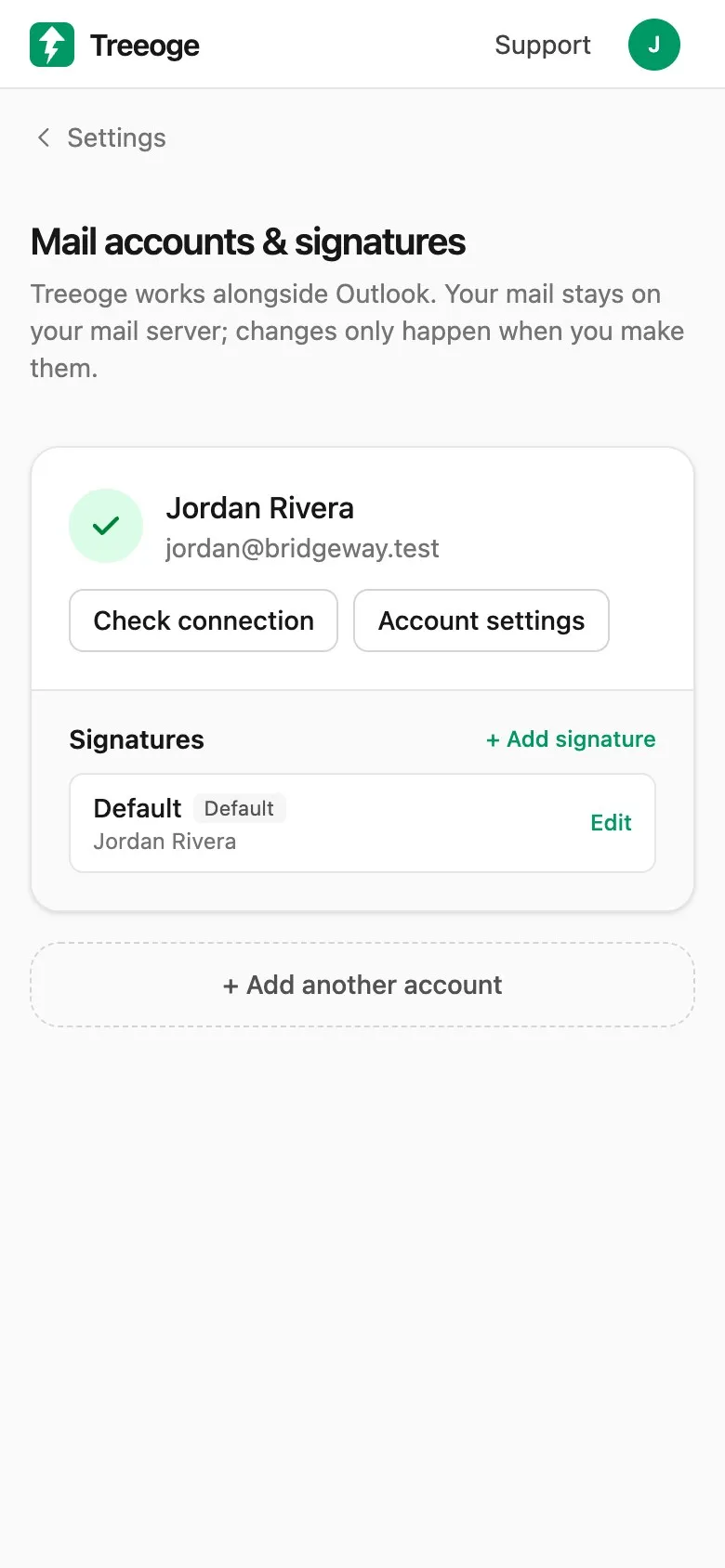
- Signatures per account. Work and personal should not share a footer.
- Mail stays on the server. Connecting an app should not migrate the mailbox.
- Search across accounts. Finding an old PO should not require guessing which app holds it.
Those rules matter whether or not AI is involved. For a broader comparison of tools, see the best email app for multiple accounts.
A simple setup for several business addresses
- List every address you still need. Include host mail and older Yahoo or AOL inboxes that still get orders.
- Connect them in one client that supports IMAP. Prefer a tool that lists your providers clearly.
- Set signatures per account. Check a test reply from each.
- Use All inboxes for triage. Switch to one account when you are doing focused work for that business.
- Keep the same process everywhere. Sort, clean, reply or file a task, then move on.
A multi-account app only helps if the workflow travels with you. Triage and drafts should work the same way on every connected mailbox.
Apple’s guide covers adding email accounts on iPhone in Mail. Use that for the system app. Use a dedicated workspace when you also want sorting and drafting across providers.
How Treeoge keeps several accounts in one workspace
Treeoge connects Gmail and Google Workspace, iCloud, Yahoo, AOL, Fastmail, Zoho and most other IMAP servers. Read them in All inboxes or one at a time. Replies send from the account that received the email. Each account can have its own signature. Sent mail and drafts stay in that account’s folders. Search covers the accounts you connected. Microsoft 365 and Outlook.com are not supported yet.
On iPhone, that means one browser session instead of a stack of mail apps. Pair it with mobile email triage so every account gets the same pass. Details live on works with your mailbox.
Connect your accounts on a 14-day trial.
FAQ
Can I manage multiple email accounts on iPhone without Apple Mail?
Yes. Browser workspaces and third-party apps can hold IMAP accounts. Pick one that sends from the right address every time.
Will a unified inbox mix personal and work threads?
You still see which account received each message. Switch to a single account when you want separation.
Can I keep business and personal signatures separate?
You should. In Treeoge, each connected account has its own signature.
What if one account is Microsoft 365?
Treeoge cannot connect that mailbox yet. Keep it in Outlook or Mail until Microsoft sign-in ships.