Create Tasks from Emails on Your iPhone
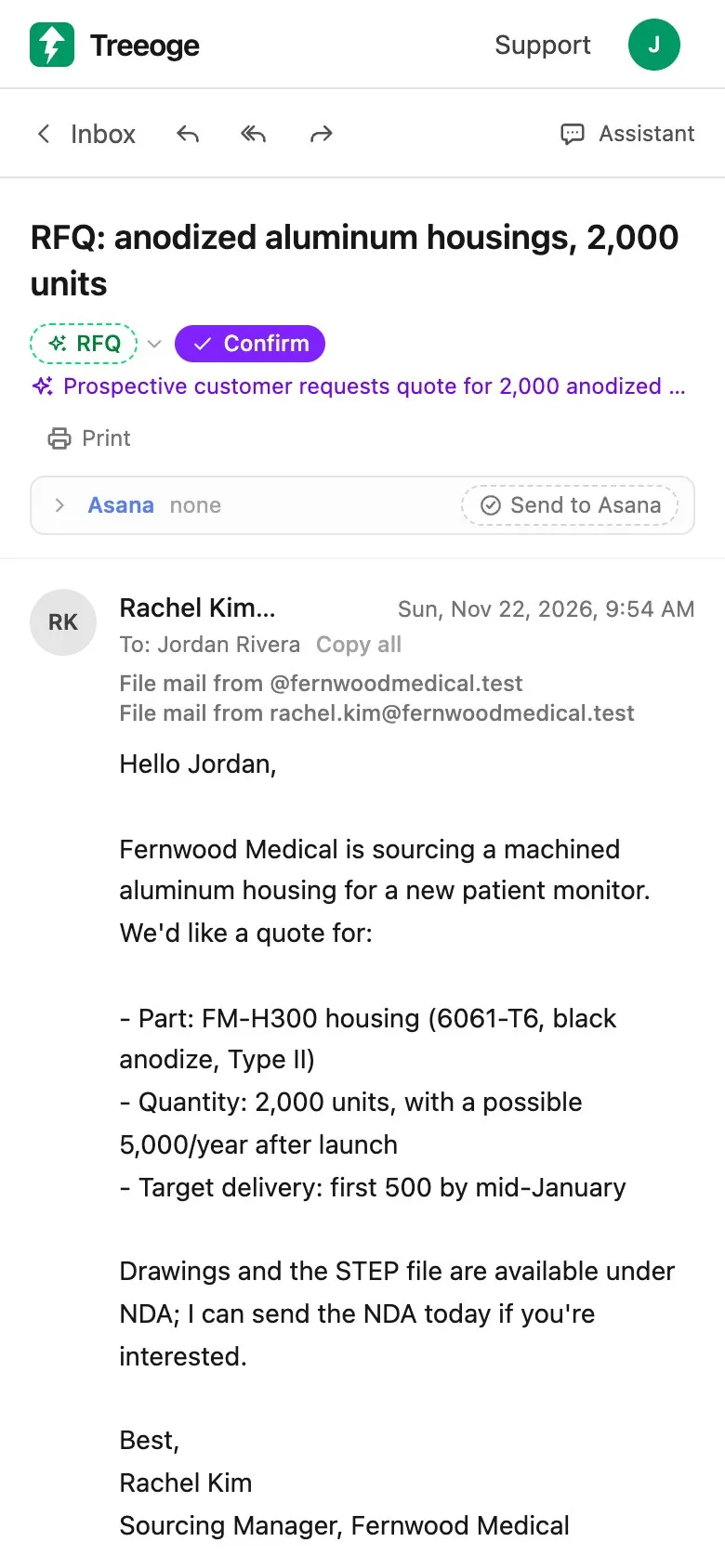
Actionable mail dies in the inbox when you wait for a desk. You can create tasks from emails on iPhone as soon as you spot the ask, then keep working the board while the context is fresh.
In practice that means: read the message, capture the work, stay linked to the thread, and do it on the phone you already have with you.
Why turning mail into project work breaks on mobile
People forward mail to a task tool, or they copy a subject into a to-do app later. Both are slow on a small screen. Context gets lost. Duplicates show up when the same customer already has an open job.
AI help only works if you still review the draft. The model should pull the outcome, the contact and the key details. You set the owner and the due date. Nothing should save until you confirm.
How to turn emails into tasks on a phone
Use a short loop every time an email is really a to-do.
- Spot the ask. One request per task when you can.
- Create the task from the thread. Prefer a draft filled from the email over a blank card.
- Check for a related task. Add to an existing job when the order or customer already has one.
- Name it by the outcome. “Send Acme quote for 500 brackets” beats “Re: question.”
- Save, then move the card. Keep tasks you will actually open again.
This is the same idea as turn emails into Asana tasks, focused on phone time. Asana’s own tips still cover forwarding to x@mail.asana.com when you only need a quick capture.
Keep the work on a board, not only a list
A list of tasks is easy to ignore. A board shows what is waiting, what is in progress and what is done. That works well on a phone when the columns match the ones you already use in My Tasks.
Capture the to-do first. Then slide the card across columns as the work moves. Keep the link back to the message so comments and files stay close. Let AI draft the card; you still place it.
If the team already runs projects in Asana, the mobile win is skipping the hop between a mail app and a separate task app for every request.
How Treeoge helps you create tasks from emails on iPhone
Treeoge connects your mailbox to Asana in the phone browser. It drafts a task from the email, suggests related tasks you may want to add to instead, and keeps the link between the email and the task. You can work your Asana My Tasks board from the inbox: open a task, comment and jump back to the mail. Columns follow your My Tasks sections, so the board shape is Kanban-like without leaving Treeoge. Nothing is created in Asana until you click.
Pair this with mobile email triage so delegate is a real next step, not a mental note. Feature details are on the Asana email integration page.
Try the workflow on a 14-day trial.
FAQ
Can I create tasks from emails on iPhone without Asana?
Yes, with any tool that accepts mail or has a mobile capture action. Treeoge’s built-in board path is Asana My Tasks today.
Does AI create the Asana task on its own?
It should not. In Treeoge, you review every task before it is saved.
How do I avoid duplicate tasks?
Search related tasks before you create a new one. Add the email as context on the existing card when it fits.
Is an email to Kanban board the same as project folders?
No. Folders file mail. A board tracks work states. Use both when the email still matters after the task exists.