How to Write Emails by Voice Using AI
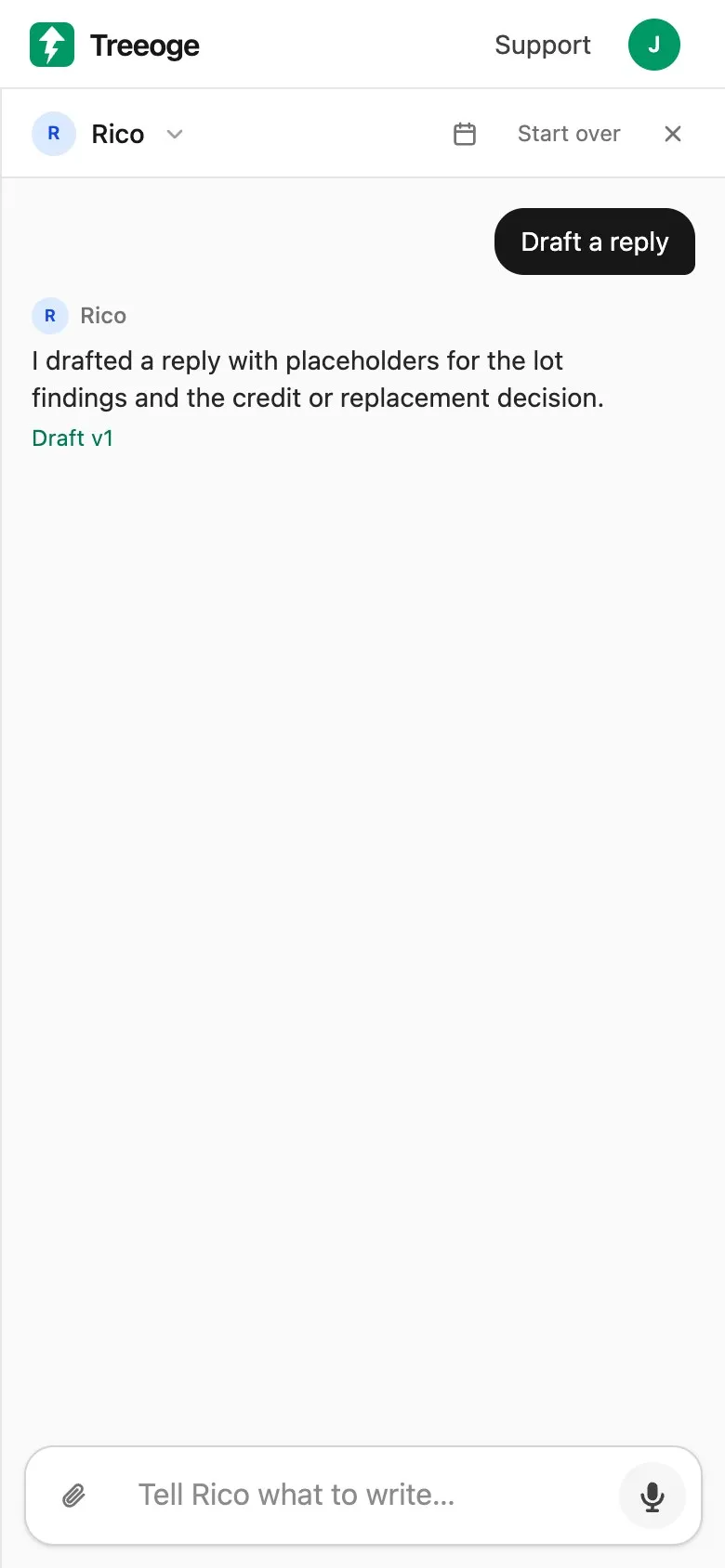
Phone keyboards make careful mail feel hard. Most people save the thoughtful reply for a desk. You can write emails by voice instead, and still sound professional, if the tool drafts from your intent rather than pasting a raw transcript.
Traditional dictation types every word you say. An AI brief works more like talking to an assistant. You explain what to say, who it is for, and how it should feel. Then you review the draft before it goes out.
Why a spoken brief beats word-for-word speech
Keyboard dictation on iPhone is fine for a short note. It struggles when the message needs tone, structure and a clear ask. You end up editing a transcript that still reads like speech.
A better loop looks like this:
“Tell this customer we are running behind, but I do not want them to lose confidence. Keep it warm and professional. Explain that we are on it, and reassure them.”
You did not dictate every sentence. You controlled the emotional tone. The draft carries the wording.
How to write emails by voice without typing
- Open the thread or a new draft. Know the ask before you speak.
- Start the mic. In Treeoge, tap Dictate, or hold Space on a keyboard.
- Say the intent. Include the outcome, the facts, and the tone. Filler words are fine.
- Stop and read. Fix names, prices and dates. Ask for a warmer or shorter pass if needed.
- Send only when it is right. Nothing goes out until you tap Send.
That loop also works when you reply from the phone. Stay in the thread. Speak the change you want. Keep refining until it matches you.
When to use plain dictation vs an AI draft
Apple documents how to dictate text on iPhone. Use that when you only need speech-to-text in any app.
Use an AI draft from a spoken brief when you need a finished message. Speak context, not commas. Ask for a warmer or shorter pass when the first draft is too stiff or too casual. Skip typing the whole body on glass.
A good voice-to-draft assistant should:
- Keep your facts as you stated them
- Leave placeholders for prices or dates it does not know
- Never send on its own
- Let you steer in plain words after the first draft
How Treeoge helps you write emails by voice
Treeoge drafts inside the email thread on your phone browser. You type or dictate what you want to say. Assistants carry tone for different audiences. You can attach a PDF or an earlier email for context. Drafts save as you edit. Treeoge never sends until you click.
See AI reply drafting, or go deeper on AI email replies that sound like you. Working across languages? Read reply in another language.
Ready to try the loop on your own mailbox? Start a 14-day trial.
FAQ
Is voice to email AI the same as iPhone dictation?
No. iPhone dictation types what you say. Voice to email AI can take a brief and write the message for you to review.
Can I reply to emails by voice in another language?
Yes, in Treeoge. Speak in your language. Review the draft in theirs before you send. See email translation.
Will AI invent facts if I dictate professional emails loosely?
It should not. Treeoge leaves placeholders for prices, dates and other unknowns. You fill them in before Send unlocks.
Do I need a quiet room to write emails by voice?
A quieter spot helps with names. Skip confidential talk in public. Anyone nearby can hear what you say.